Minimal Setup
To set up a new system, you need two things.
- Entity - An entity controlled by the steering system.
- Steering System - The system which will control this entity.
Entity Setup
- Create a new prefab and add
SteeringEntityAuthoringcomponent to it. - Optionally, add some mesh as a child to visualize the entity.
- Add a
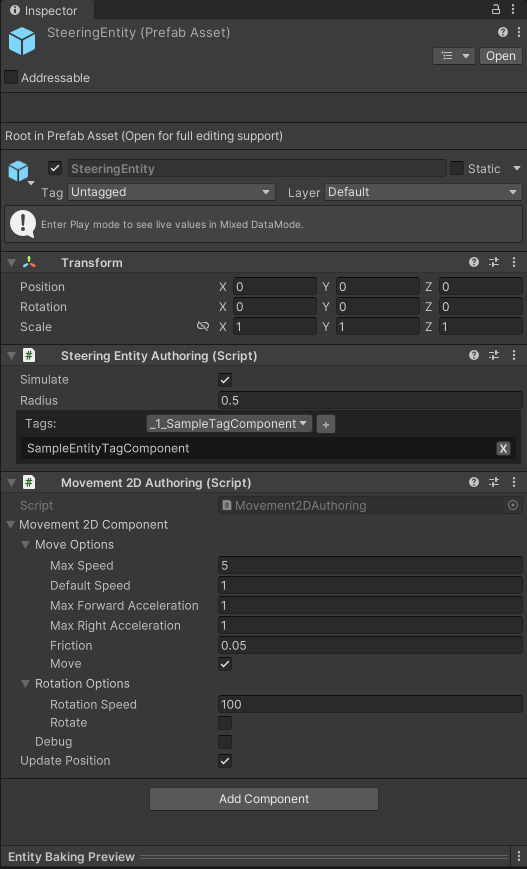
Movement2DAuthoringcomponent for aMovement2DSystem. - Create a new tag
SampleEntityTagComponentfor it. This tag tells the steering system which entities belong to it. - In
SteeringEntityAuthoring, selectSampleEntityTagComponentfrom the dropdown and add it.
SampleEntityTag.cs
[SteeringEntityTag] // This will let the editor find this tag.
public struct SampleEntityTagComponent : IComponentData {}
Your prefab should now match the following:
Steering System Setup
- Right click into your folder and select
Create/SteeringSystem. - Rename the newly created asset to
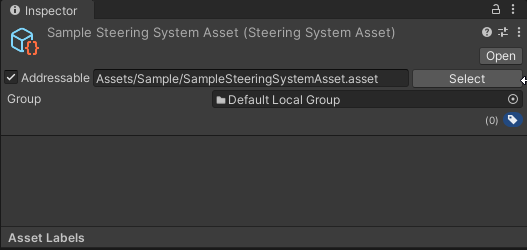
SampleSteeringSystemAsset, then select it and mark it as addressable.
- Create a new C# script which will load and run this system.
SampleSteeringSystem.cs
using SteeringAI.Core;
using Unity.Entities;

[UpdateInGroup(typeof(SteeringSystemsGroup))]
public partial class SampleSteeringSystem : BaseSteeringSystem
{
    protected override string getAssetReferenceName()
    {
        return "Assets/Sample/SampleSteeringSystemAsset.asset";
    }
}
warning
Make sure the path matches addressable address of the system, as shown in image above.
- Double click the
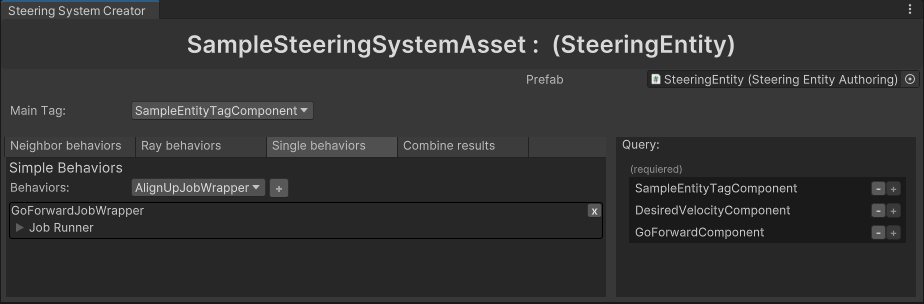
SampleSteeringSystemAssetto open it in the editor window. - Drag and drop your entity's prefab there.
- In the Main Tag dropdown, select
SampleEntityTagComponent. - The editor lists which components are missing on the entity. Click plus next to
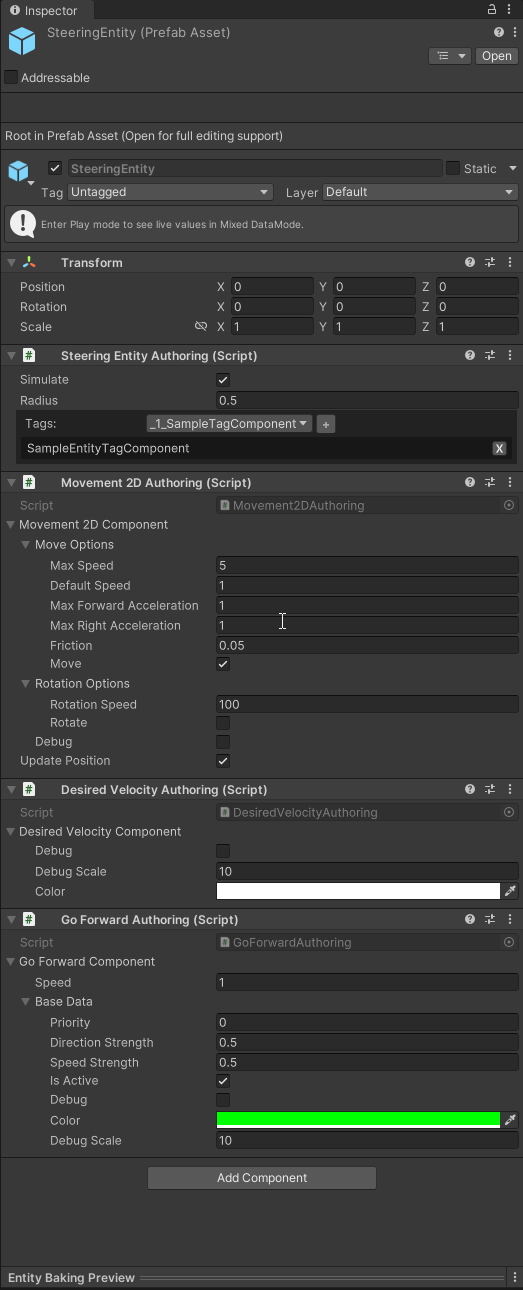
DesiredVelocityComponentto add it to the prefab. - Select the Simple Behaviors tab and add
GoForwardJobWrapperfrom the dropdown. This behavior makes entities go in their forward direction. - On the right, add
GoForwardComponentto the entity. It is used to parametrize the behavior.
The contents of your folder should now look like this:

Your prefab should look like this:
Scene Setup
- Unity's ECS requires working with Subscenes. Right click into the scene hierarchy, select
NewSubsceneand save it. - Drag and drop a few of these prefabs into the Subscene.
- By changing their
SpeedonGoForwardComponentyou can change how fast they want to travel. - With parameters of
Movement2DAuthoring, you can change their maximum speed, acceleration etc. - Hit play
The video shows a scene with three entities, each with different Speed on their GoForwardComponent.