Installation
Steering AI is split into four main folders.
- Packages/SteeringAI/Runtime/Core - The core of the framework. It is responsible for taking
SteeringSystemAssetprepared in the editor and running its jobs. - Packages/SteeringAI/Runtime/Defaults - Contains implementation of several behaviors as well as movement systems and other utilities.
- Packages/SteeringAI/Editor - Handles editting of the
SteeringSystemAssetin editor. - Assets/Samples/SteeringAI - Contains sample scenes which showcase the usage of the framework with behaviors and movement systems from Defaults.
1) Importing Samples
The samples can be imported in the package manager as shown below.
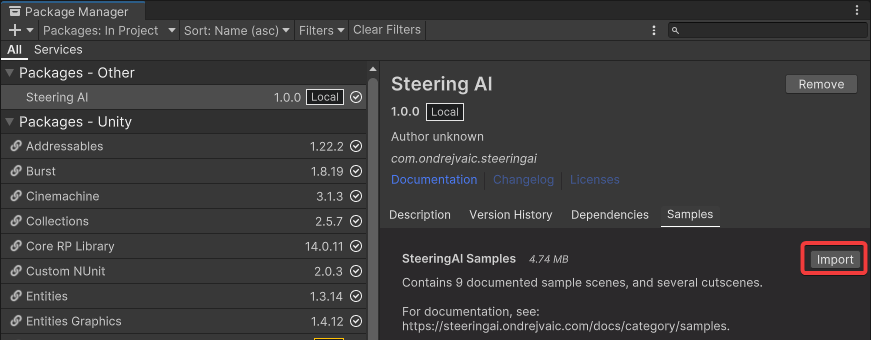
2) Add a STEERING_DEBUG symbol
Add a script define symbol STEERING_DEBUG. This will allow you to debug the behaviors.
For a slight performance increase, make sure to remove the symbol before releasing your project.
- Navigate to
Project Settings/Player/Other Settings - Add
STEERING_DEBUG - Click apply
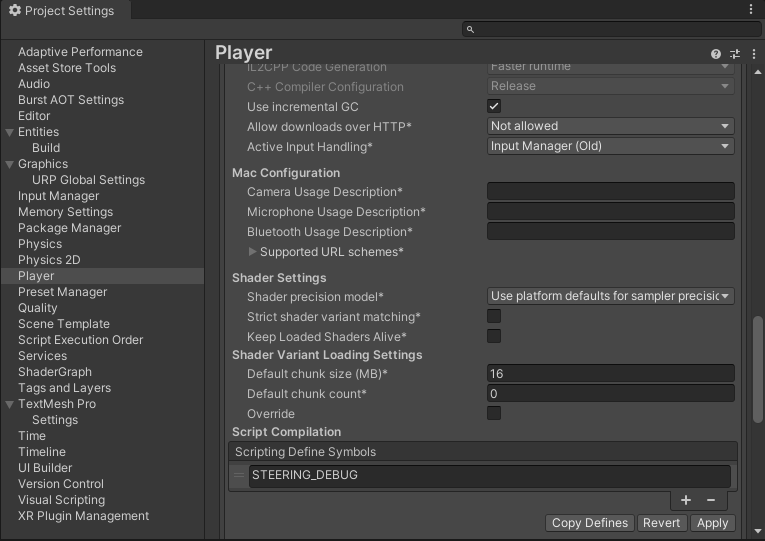
Adding STEERING_DEBUG into script define symbols.
3) Initialize Samples
After importing the project, you need to mark all SteeringSystemAsset as Addressable.
- Search for
t:SteeringSystemAssetin the Project window and select all of them. - In the inspector check
Addressableon all the assets.
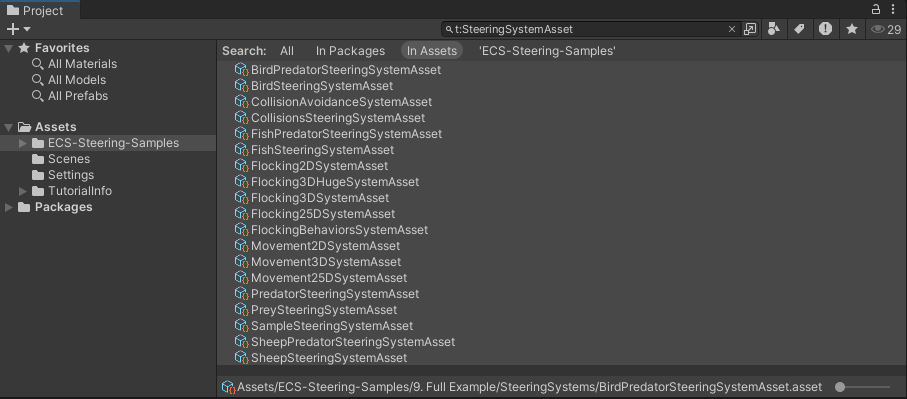
Locating all instances of SteeringSystemAsset.
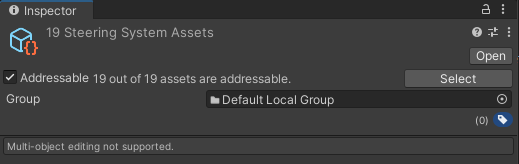
Marking the assets as Addressable.
4) Set Renderer to Forward+
The samples use com.unity.entities.graphics to draw the entities. To ensure proper set up, you need to use Forward+ rendering.
- Search for
t:UniversalRendererData. - Set
RenderingPathtoForward+on all of them.
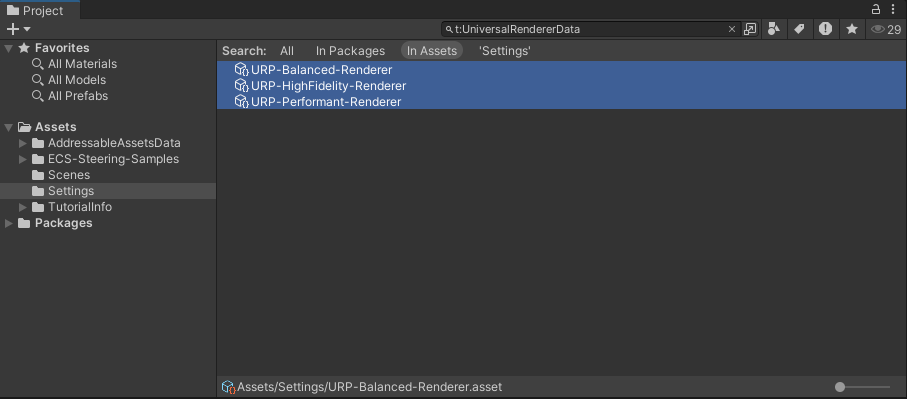
Locating all instances of UniversalRendererData.
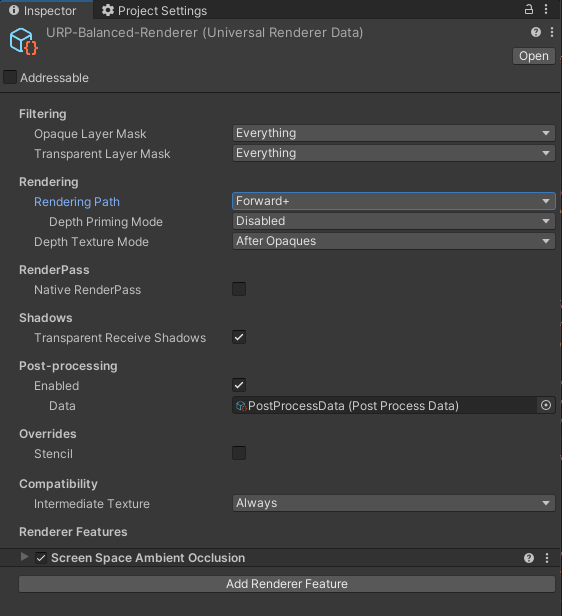
Instance of UniversalRendererData with Forward+ selected.
5) Test
Open the sample scene at Samples/SteeringAI/1.0.0/SteeringAI Samples/1. Minimal Set Up/SampleScene.unity and run it. The entities in the scene should start moving forward.